Receipt to Excel: Turn Receipt Photos into a Sheet
Receipt to excel is the practical job of turning a store or restaurant photo into rows you can filter, sum, and send to accounting. This guide covers field suggestions, shooting tips, small-batch habits, and privacy notes so the job stays accurate without uploading images to a random server.
Receipt to Excel example (sample data)
Below is a real before/after from the converter (example data, not a merchant’s private slip). Yellow cells in the after view are low-confidence cells from the live review UI.
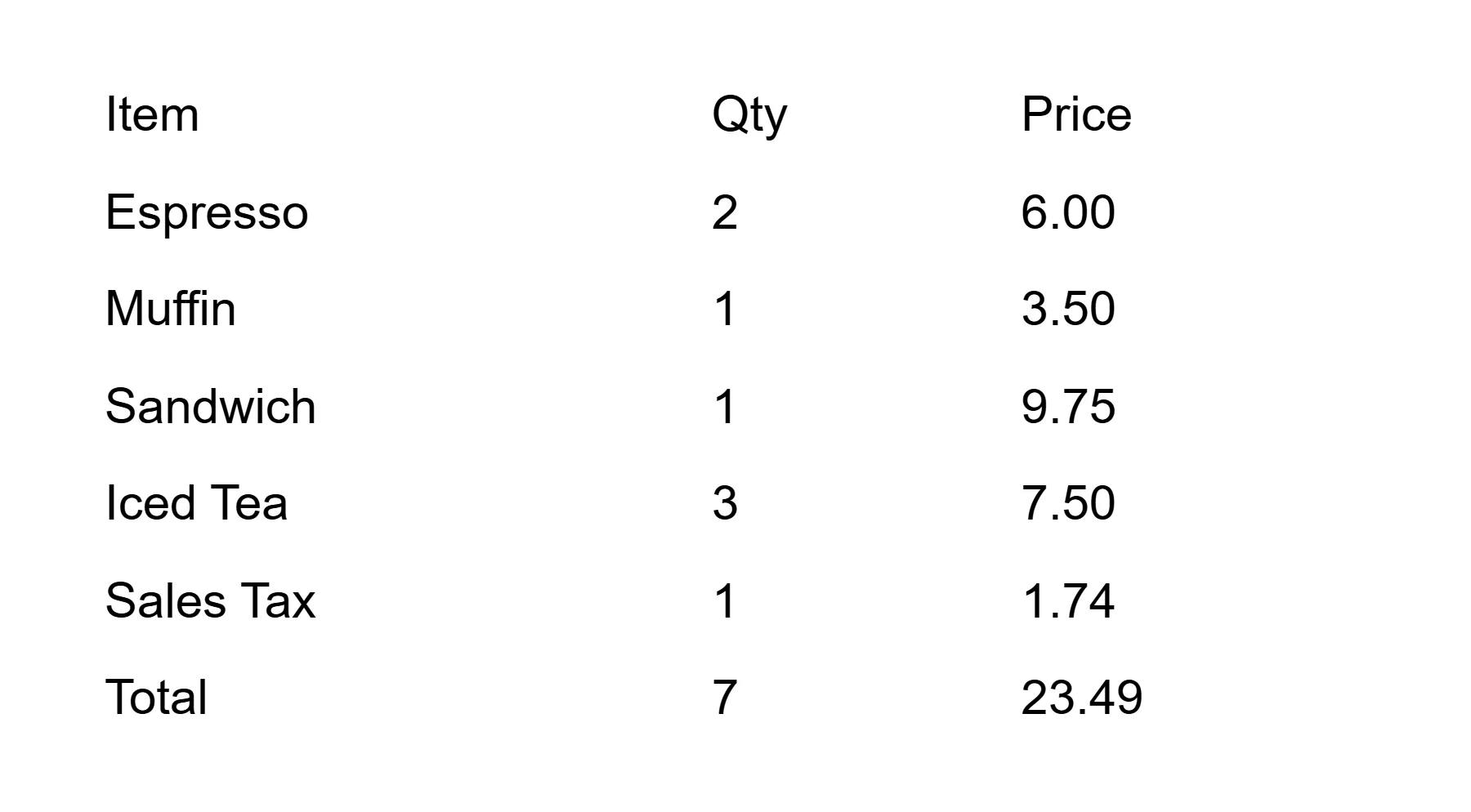
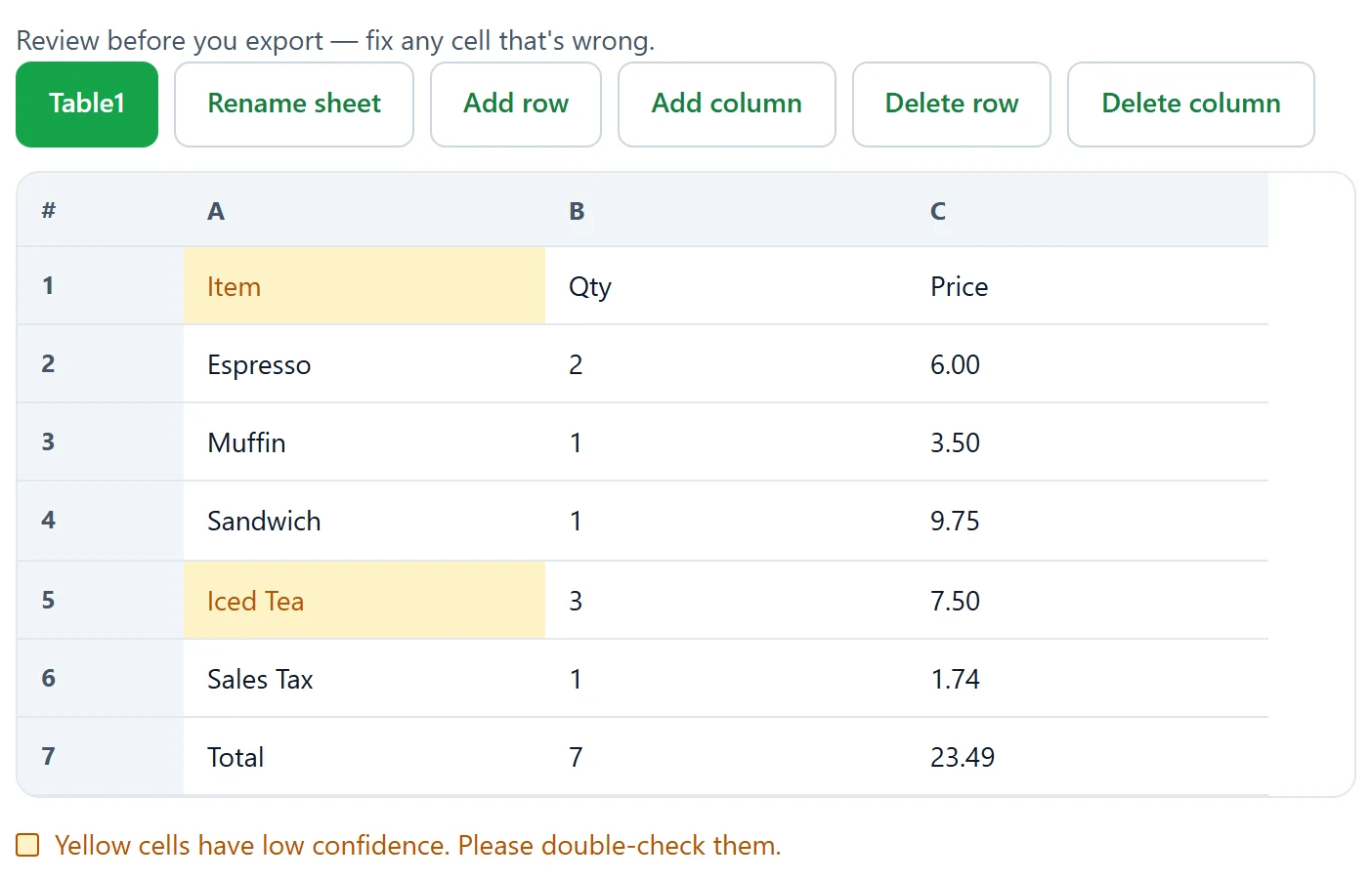
Download a sample workbook matching this receipt to Excel run (example data).
Suggested fields for receipt to Excel
After recognition, rename or rearrange columns so every export shares the same schema. Consistency matters more than perfect merchant name spelling on day one.
| Field | Why it matters | Tips |
|---|---|---|
| Date | Expense period and audits | Normalize to ISO or your ledger format afterward |
| Merchant | Vendor reporting | Clean abbreviations that OCR misread |
| Amount | Line items before tax | Keep currency symbols consistent |
| Tax | VAT or sales tax reclaim | Confirm against the printed tax line |
| Total | What you actually paid | Must match card slips after review |
Optional columns like category, payment method, or project code can be added after export. Do not expect the raw OCR grid to invent those labels — add them in Excel once the five core fields are stable.
Shooting tips for receipts
- Flatten curls; thermal paper fades — digitize soon if you rely on it later.
- Fill the frame with the item list; crop loyalty ads and QR posters.
- Avoid mixed lighting that washes out gray thermal text.
- Capture the total block even if you only need line items.
- Retake if your finger covers the tax row.
Long supermarket tapes can be photographed in two overlapping shots and converted as two sheets, then stacked. That approach often beats one tiny unreadable image when you need receipt to excel for dozens of lines.
Batch tips without losing privacy
OCR2Excel allows up to three images and 20 MB total per run. Name sheets by merchant or date afterward so you can find them later. For weekly expense dumps, process in small groups rather than one giant collage.
Because receipt to excel here is local, card numbers on the slip never leave the tab during OCR. Still redact or avoid capturing full PAN data when your policy requires it — local processing is not a license to store secrets carelessly.
Fixing common receipt OCR mistakes
Most wrong cells trace back to the photo, not the engine. A crumpled corner bends the Qty column, so 4 can arrive as 9 — always compare quantities against the line prices you remember. Long merchant names lose letters when the shot is angled; retyping one merchant cell is faster than fighting a skewed crop. Thermal paper fades to gray, which lowers confidence across the whole receipt to Excel run — darker text from a fresh print, or a screenshot of the digital receipt, reads far better than a faded original. When a total disagrees with the item rows, edit the cell rather than re-running the conversion: the grid is editable for exactly this reason.
From receipt grid to bookkeeping
After download, use Excel filters on Merchant and Date. Pivot totals by week. Match Total against your bank feed. When statement lines need the same treatment, continue with bank statement to Excel field mapping.
If Excel’s Data from Picture is unavailable, this workflow in the browser is a reliable alternative. For engine behavior, see OCR image to Excel; for the shared checklist, see how to convert image to excel.
Handwritten tip lines remain weak — type those cells afterward rather than trusting faint pen marks. Printed QR-only receipts may need a screenshot from the merchant app instead of a paper photo.
Quality checklist before you submit expenses
- Total matches the payment method slip.
- Tax is present when your reclaim process needs it.
- Date is not a misread of the store phone number.
- Merchant name is understandable to finance.
- Yellow cells are resolved or annotated.
Teams that enforce this checklist cut reimbursement delays. The job is only finished when a human signs off on those five points.
Travel weeks generate piles of mixed currencies. Keep a Currency column after export so finance can convert rates once. Hotel folios often span two pages; run it twice and label sheets Night1 and Night2 before combining. Fuel receipts with dense station codes need an extra pass on the Amount column because OCR may split liters and price.
If a vendor emails a PDF receipt, screenshot the item table rather than photographing a monitor. Clean screenshots raise accuracy and reduce glare artifacts. For recurring vendors, save a template workbook with the five fields already named so each download pastes into a familiar structure. Keep a short note of which camera settings worked last week so the next batch starts from a known-good photo habit.
Receipt to Excel FAQ
How do I turn a receipt photo into Excel?
Photograph the receipt straight on, open OCR2Excel, convert, map columns to Date, Merchant, Amount, Tax, and Total, then download .xlsx. That is the core receipt to excel loop.
Is my image uploaded to a server?
No. Receipt to Excel on this site runs locally in your browser. Receipt images are not uploaded to OCR2Excel servers for recognition.
How accurate is OCR for tables?
Printed item lines work better than faded thermal paper. Receipt to Excel still needs a quick check of tax and total rows before you expense them.
Can OCR read handwritten tables?
Handwritten tips on receipts are unreliable. Prefer printed totals for receipt to excel, or type the tip line manually.
What image formats work best?
PNG, JPG, or WEBP under 10 MB. Flatten curled receipts under glass or a clear bag before receipt to excel capture.
Can I convert a screenshot instead of a photo?
Yes. Email or app receipt screenshots can feed receipt to excel the same way as camera photos.
Is image to Excel free?
Yes. Receipt to Excel via OCR2Excel needs no account or payment.
Can I process multiple receipts at once?
Up to three images per run become separate sheets. For larger batches, repeat receipt to excel runs and combine workbooks later.
Should bank statement pages use the same columns?
Not exactly. Statement exports need Debit, Credit, and Balance fields — see the bank guide after you finish receipt to excel work.